Help with Meli for Mac
Request Support for Your Bank
Bank not supported yet? Send us a few of its transaction emails from Meli, and we’ll use them to add your bank.
Send a request
- Click Send feedback, the bug icon at the bottom of the sidebar.
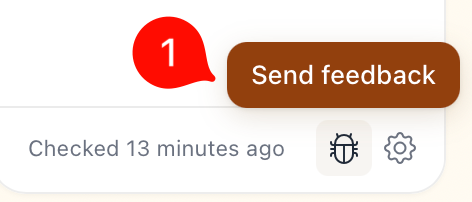
Step 1. - Choose Bank support.
- Enter the address your bank sends transaction emails from, such as
[email protected], or just its domain,yourbank.com. Click Next.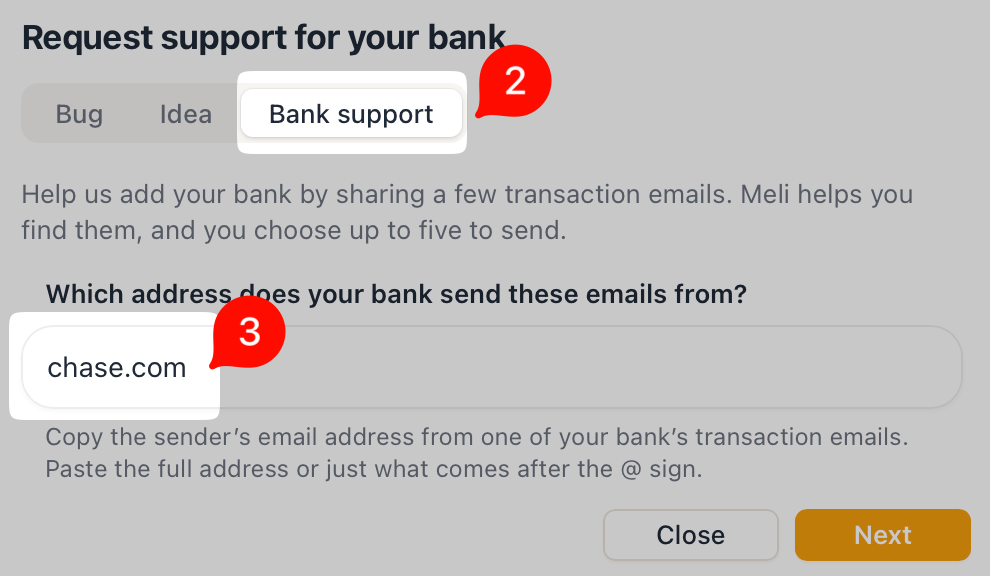
Steps 2 and 3. - Select up to five credit card transaction alerts, the emails your bank sends when you make a purchase. Leave out statements, debit card alerts, security alerts, and marketing emails.
- To hear when your bank is supported, check Email me when my bank is supported and enter your email address.
Entered the r/macapps giveaway? Don’t skip this step. We’ll send your license code to this address. - Click Send request.
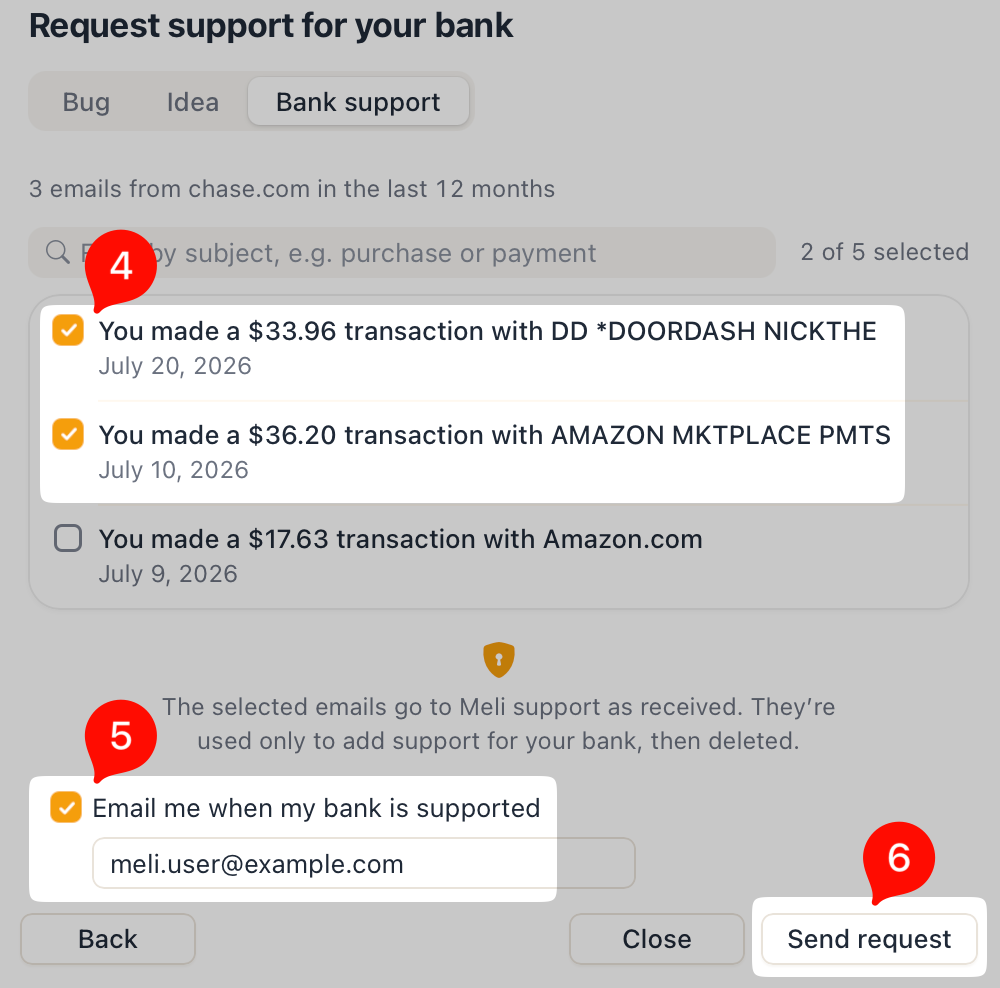
Steps 4 to 6.
If you get stuck
- Not sure of the address? Copy it from the From line of a recent alert. It can differ from your bank’s website.
- No emails found? Meli searches the last 12 months of your connected email accounts for emails from the address you entered. Check the address, or connect the account that receives your alerts in Settings.
- Next is dimmed? Connect an email account in Settings first.
What we receive
Only the emails you select, sent to Meli support as received. Each email’s text is sent unchanged, but Meli trims its headers to the sender, subject, and date, leaving out the To line with your email address. We use them to add support for your bank, then delete them.