Help with Meli for Mac
Using Rules
Use rules to organize your transactions automatically. Choose what to look for and what Meli should do when it finds a match.
A rule can put your subscriptions in the right category, tidy up merchant names, or add a note to purchases from a trip. Set it up once, and Meli takes care of matching transactions.
Create a rule
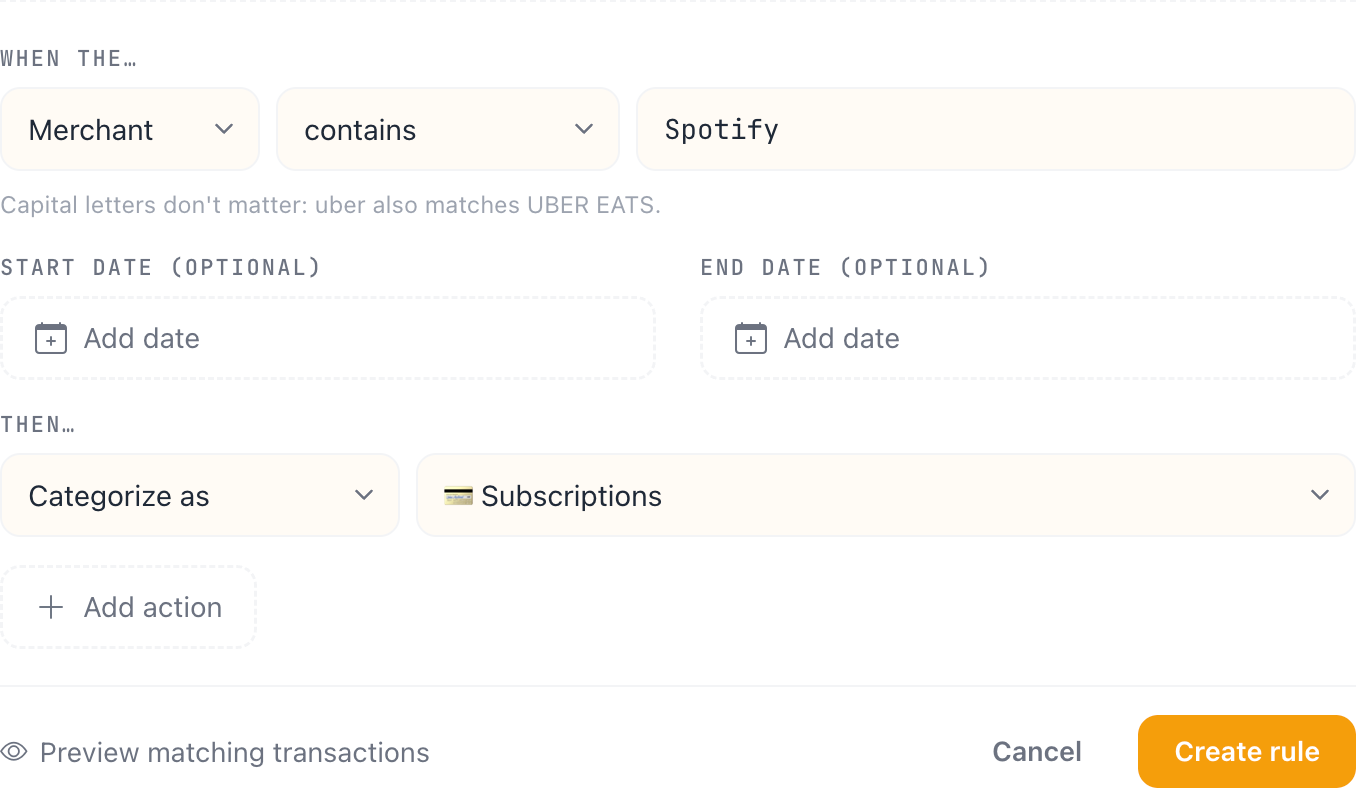
Start with something you regularly organize by hand. For example, you can put Spotify purchases in Subscriptions:
- Open Meli and choose Rules in the sidebar.
- Click New rule.
- Under When the…, choose Merchant and contains, then enter
Spotify. - Under Then…, choose Categorize as and select Subscriptions.
- Click Create rule to save it.
Choose what to match
A rule looks for text in either the Merchant name or the transaction’s Note. You can match one field per rule. Choose the field, then choose how the text should match:
| Match type | How it works |
|---|---|
| contains | Finds text anywhere in the field. coffee matches BLUE BOTTLE COFFEE. Ignores capitalization for A-Z. |
| starts with | Finds text at the beginning. AMZN matches AMZN MKTP. Ignores capitalization for A-Z. |
| is exactly | Matches the entire field, including capital letters. Uber matches only Uber. |
| is (any case) | Matches the entire field, ignoring capitalization for A-Z. Uber also matches UBER, but not UBER EATS. |
| matches pattern | Uses special characters to match variations in the text. Capital letters matter. See the examples below. |
For accented letters and other alphabets, use the same capitalization as the transaction. For example, café does not match CAFÉ.
With contains and starts with, % stands for any text and _ stands for one character. Use is exactly or is (any case) when you need those characters to be literal.
To find transactions with no note, choose Note and is exactly, and leave the text field empty. is (any case) also supports an empty note.
Match variations with a pattern
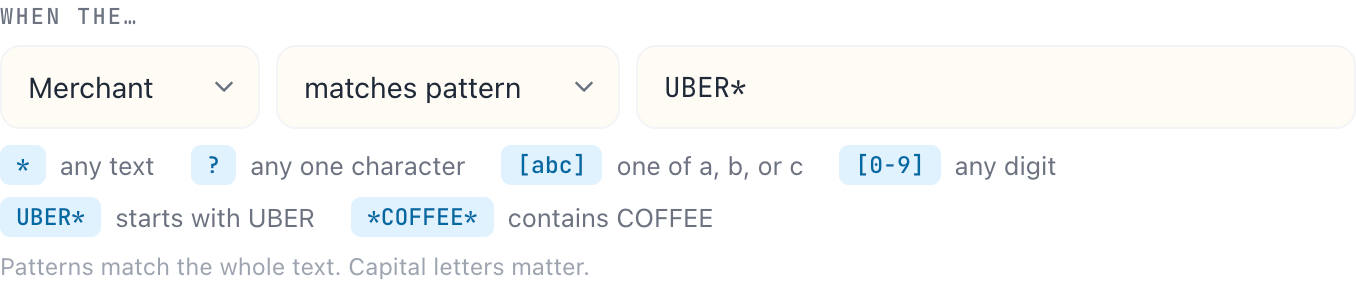
Choose matches pattern when part of a merchant name or note varies. A pattern describes the whole field:
*stands for any text.UBER*matches names that start withUBER;*COFFEE*matches names containingCOFFEE.?stands for one character.SHOP ?matchesSHOP AorSHOP 1.[abc]matches one of the listed characters.[0-9]matches one digit, soSTORE [0-9]*matchesSTORE 42.
Choose what happens
Under Then…, choose the action to apply to matching transactions:
| Action | What it does |
|---|---|
| Categorize as | Sets the transaction’s category to the one you choose. |
| Rename merchant to | Replaces the merchant name with the name you enter. For example, turn AMZN MKTP into Amazon. The new name cannot be empty. |
| Add the note | Sets the transaction’s note to your text. This replaces the existing note; it does not append to it. The note cannot be empty. |
| Mark as refund | Marks the transaction as a refund. There is no extra value to enter. |
| Add tag | Adds an existing tag while keeping the transaction’s other tags. Create tags on the Tags page first. |
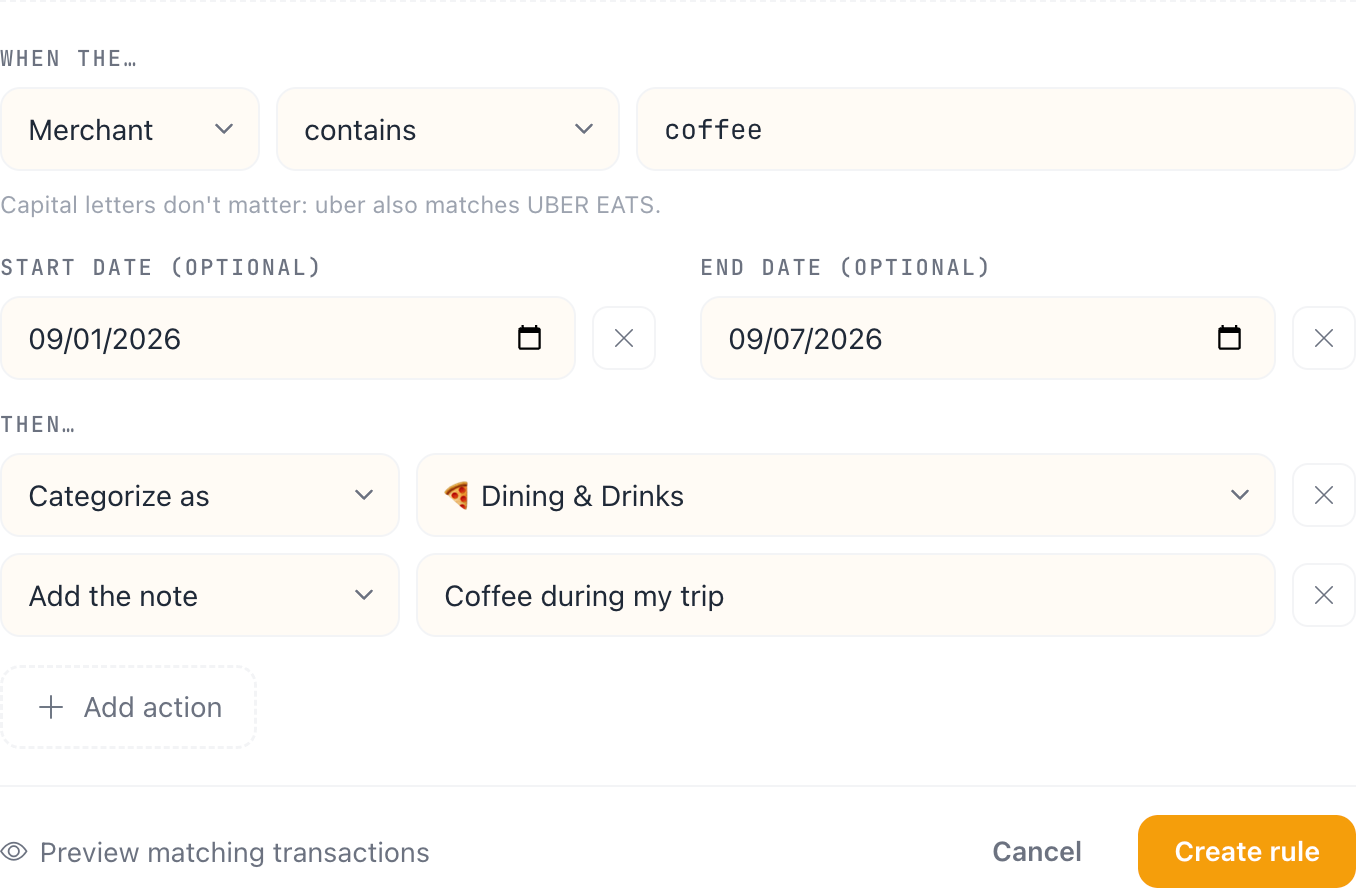
Click Add action to do several things with one rule. For example, categorize a purchase and add a note at the same time.
You can add several different tags. Each other action can appear once per rule. To remove an action, click the × beside it; keep at least one action.
Limit a rule by date
Add dates when a rule should apply only to purchases from a particular period, such as a trip:
- Click Add date under Start date to include transactions on or after that date.
- Click Add date under End date to include transactions on or before that date.
- Use both dates to select a period, or leave one empty for an open-ended range.
The dates refer to when the transaction happened. They do not schedule the rule to run later. Click the × beside a date to remove that limit.
Preview and enable a rule
Preview a rule to check which transactions it finds before you turn it on. Preview lists matches; it does not show the proposed changes or guarantee that every match will be changed.
- While creating or editing a rule, click Preview matching transactions. For a saved rule, open its More options (…) menu and choose Preview matches.
- Review the matching transactions in the side panel. Close the panel to return to the rule. Previewing does not change any transactions.
- Save the rule, then turn on the switch at the right of its row.

Turning on a rule applies it to eligible existing matches. It also runs as new transactions arrive. Some matches may stay unchanged, for example if you’ve already corrected them by hand. See why a matching transaction may not change.
Edit, pause, or delete a rule
Edit a rule
Open the rule’s More options (…) menu and choose Edit rule. Make your changes, preview the matches, and click Save rule. Click Cancel to discard your edits.
Saving changes to an enabled rule applies the updated rule to eligible matches. You can turn it off before editing if you want to review it first.
Pause a rule
Turn off the switch at the right of the rule. The rule stays saved so you can turn it back on later. Turning it off does not undo changes it has already made.
Delete a rule
Open More options (…), choose Delete rule, and confirm. Deleting a rule is permanent. Transactions keep the changes the rule already made.
View a rule’s activity
To see transactions a rule has changed, open More options (…) and choose View history. History shows those transactions as they are now, not a record of each before-and-after change. Preview matches shows which transactions match the rule now.
Preview and history omit deleted transactions and transactions in hidden accounts.
Each rule shows its activity for the month and when it last changed a transaction. Rules with activity this month also show a small chart. At the top of the page, you’ll find:
- Active rules: the number of rules currently turned on.
- Auto-organized: the number of distinct transactions changed by rules this month, based on when the rule ran rather than when the purchase happened.
- Time saved: an estimate based on 30 seconds per organized transaction.
Activity counts omit deleted transactions, transactions in hidden accounts, and transactions excluded from Insights. A transaction excluded from Insights can still appear in preview and history.
On Lite, preview and history show transactions dated in the current calendar month and the two previous months.
If a rule isn’t changing transactions
First, check that the rule is turned on and use Preview matches. If nothing appears, check the selected field, spelling, match type, and dates. Capital letters matter for is exactly and matches pattern.
If a transaction appears in the preview but stays unchanged, one of these may explain it:
- You’ve edited it by hand. If any action conflicts with your latest manual correction to the same field, Meli skips all of that rule’s actions for that transaction. Editing an unrelated field does not block the rule.
- Another enabled rule disagrees. Rules that assign different categories, merchant names, or notes to the same transaction can block each other. Edit or turn off the conflicting rule.
- The rule has already done its work. The transaction may already have the chosen values. An unchanged rule also skips transactions it has already changed; turning it off and on does not reset that history.
If you’ve moved from Pro to Lite with more than five enabled rules, turn off the extras so that rule processing can resume.