Set up American Express transaction alerts
-
Sign in to American Express
Open americanexpress.com (opens in a new tab) and log in to your account.
-
Open Account Services
Go to Menu → My Account → Account Services.
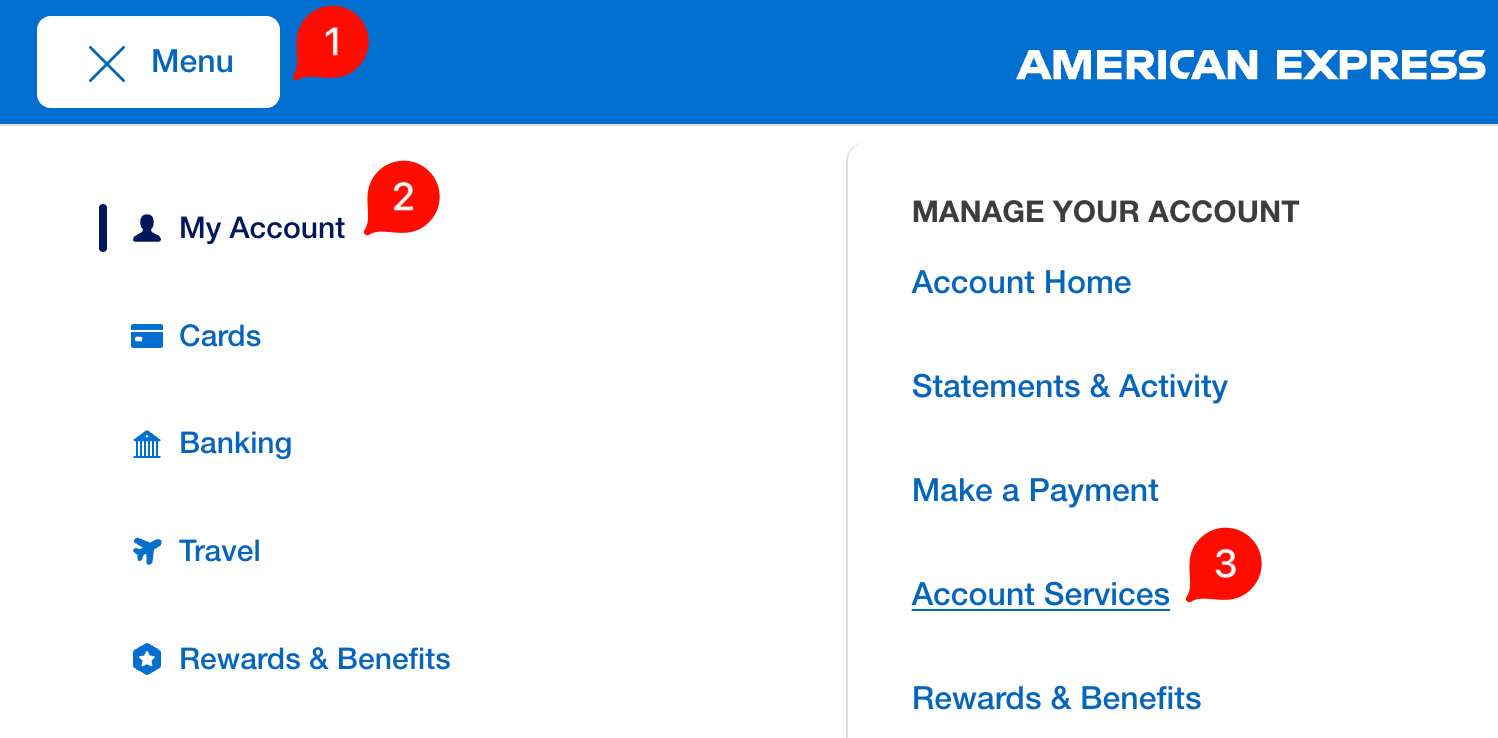
Menu → My Account → Account Services. -
Open Account Alerts
Select Alerts and Communications, then Account Alerts. Check that the card shown is the one you want alerts for.
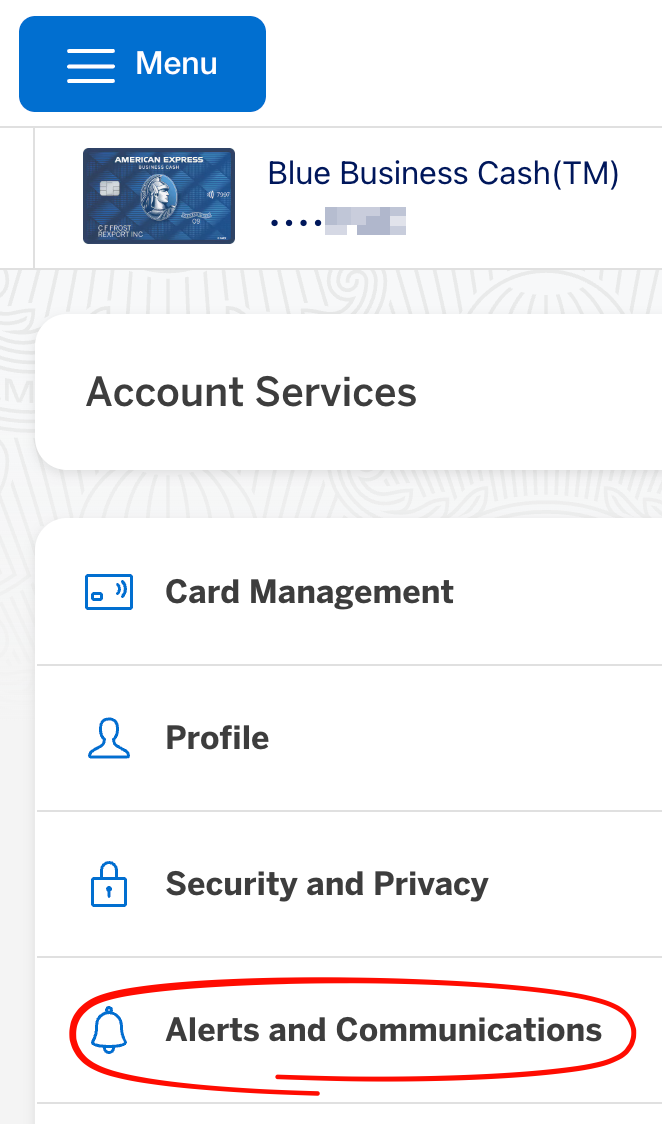
Choose Alerts and Communications. 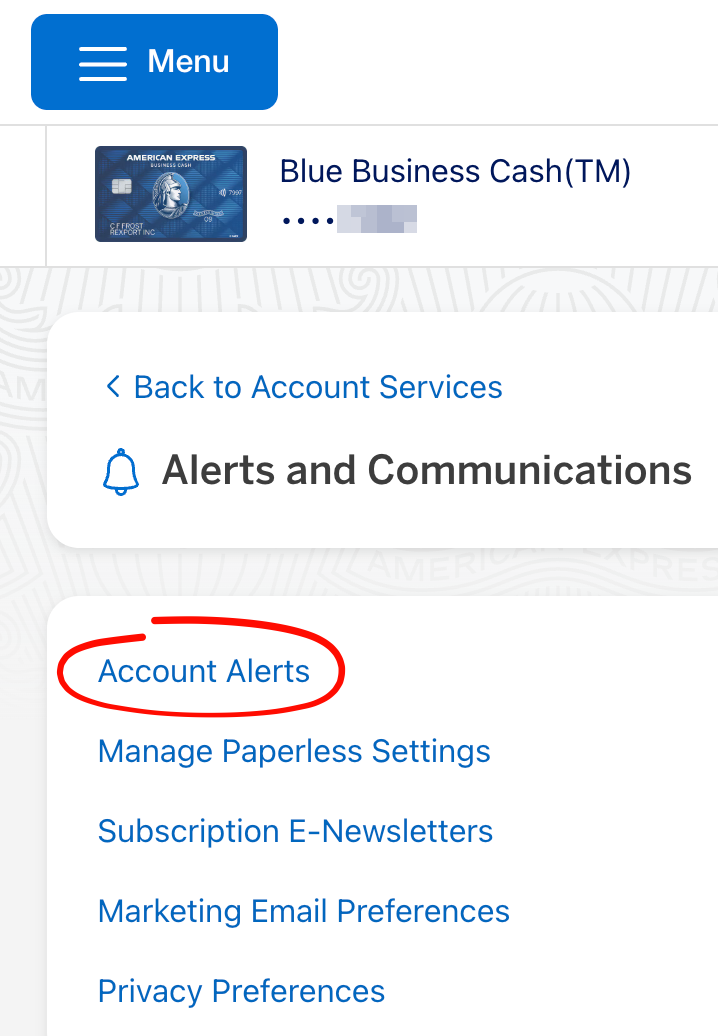
Then open Account Alerts. -
Select Fraud
On the Account Alerts page, select the Fraud tab to find the purchase alert setting.
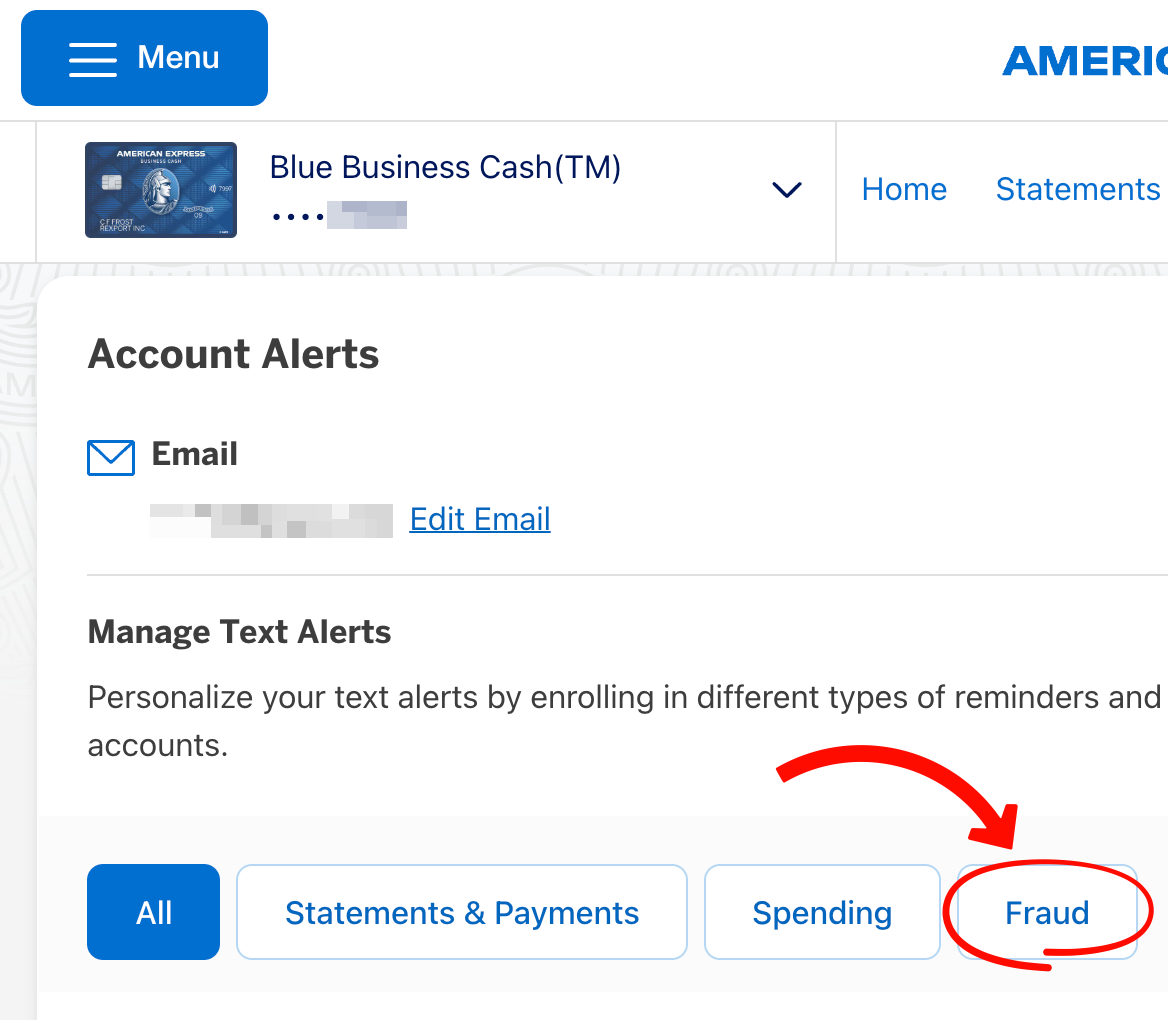
Open Fraud to find Large Purchase alerts. -
Turn on purchase emails
Under Large Purchase, enter 1 and check Email. This requests an email for purchases above $1.
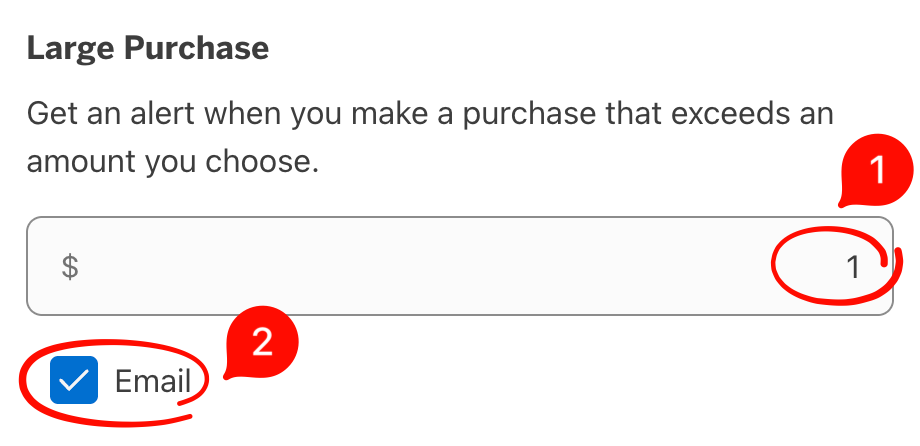
Set the amount to $1 and select Email. -
Turn on refund and credit emails
Select Spending. Under Business Credit Received, check Email. American Express will email you when a credit from a business is posted. Meli can automatically import refund emails, so you can see money coming back without entering it yourself.
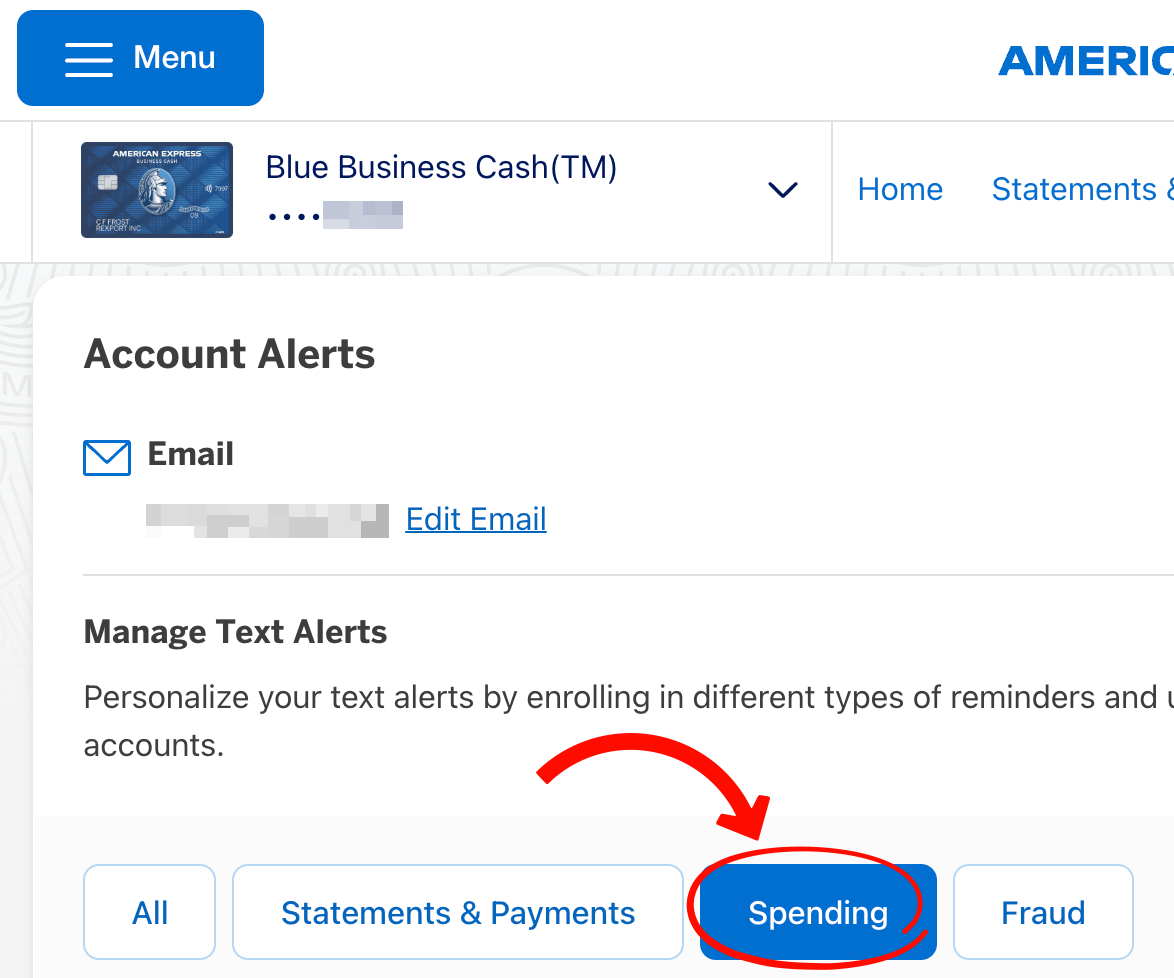
Switch to Spending to find credit alerts. 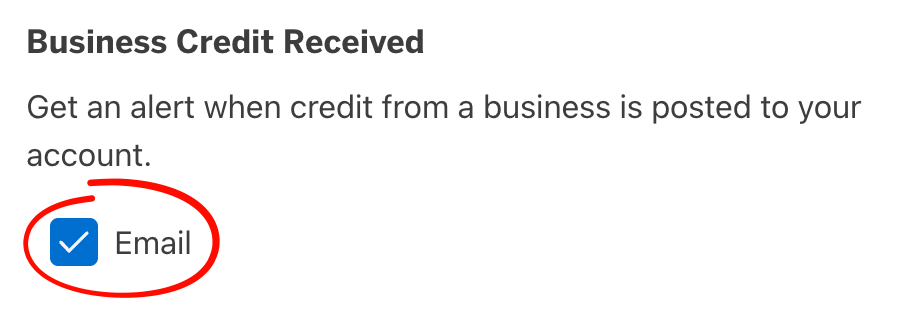
Check Email for Business Credit Received. -
Save your alerts
Click Save Settings. Repeat the setup for each American Express card you want to track.
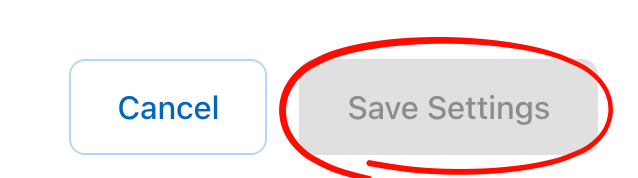
Save your purchase and credit email settings.
You’re all set!
American Express will now email you about purchases and credits. Connect your inbox to Meli to automatically import and categorize your spending.
New here? Select “Meet Meli” to learn more.
Common questions
Will I receive an email for every American Express purchase?
The Large Purchase setting shown here sends alerts for purchases above $1. Purchases at or below that amount may not generate an email, so Meli’s automatic imports may not include them.
How do I receive American Express refund alerts?
Open Account Alerts → Spending and check Email under Business Credit Received, then click Save Settings. This alert covers credits posted by a business, including merchant refunds.
Where do I change the email address for alerts?
On the Account Alerts page, select Edit Email next to your current address. If you use Meli, connect the inbox that receives these alerts.
Why am I not receiving transaction alerts?
Check that you selected the right card, enabled Email for both alert types, and saved your settings. Review the purchase threshold and email address, and check your spam folder. If alerts still do not arrive, contact American Express through its website or app.
Do I need Meli to receive American Express alerts?
No. American Express sends the emails directly to you. Connect that inbox to Meli if you’d like supported alerts to automatically become organized spending and refund records on your Mac.
Screenshots from the American Express website, September 14, 2026, showing a Blue Business Cash card. Menus and available alerts may vary by card. Meli is independent and is not affiliated with or endorsed by American Express. American Express names and screenshots belong to their respective owners.